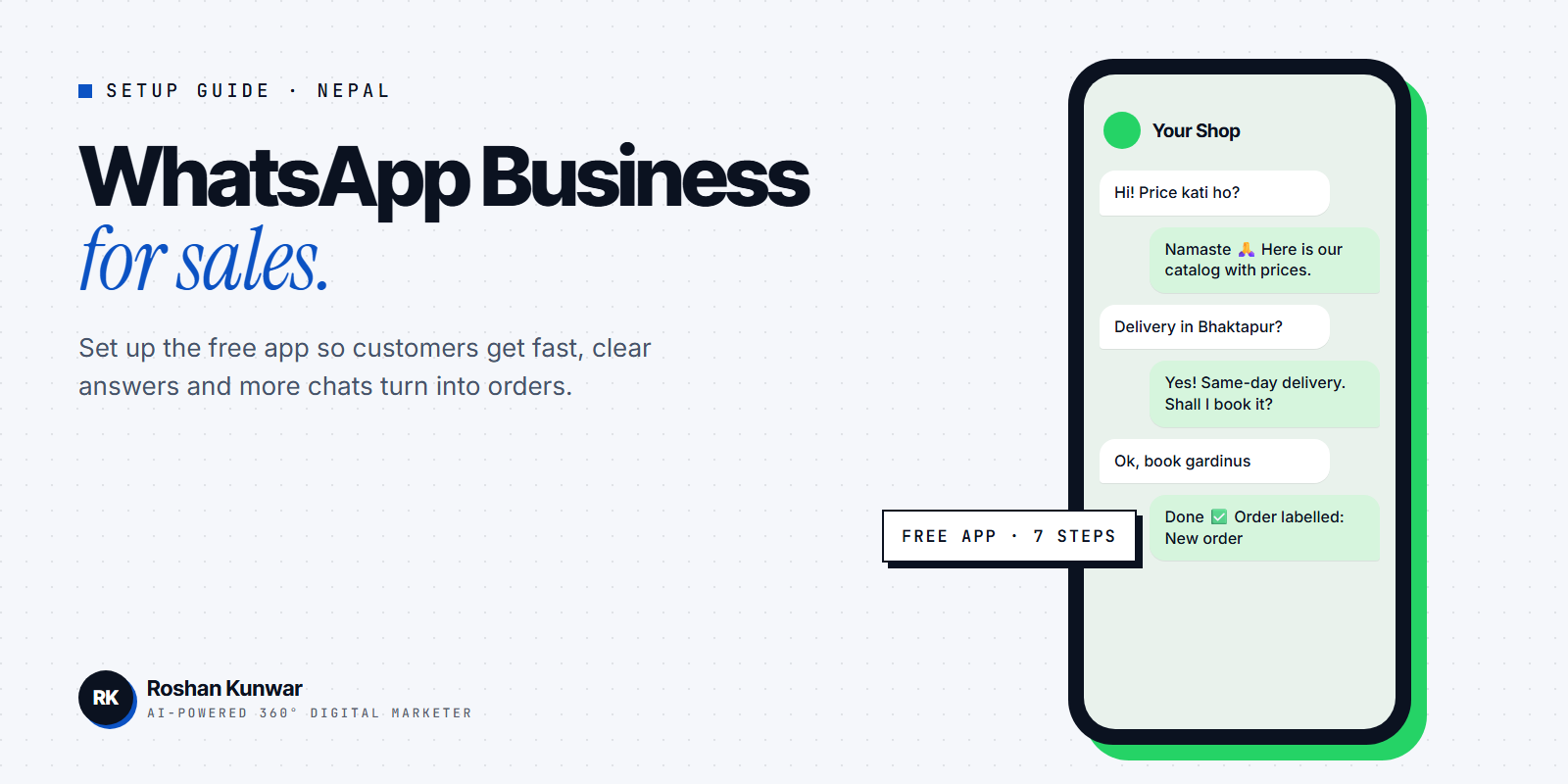
In Nepal, a large share of sales starts with a message: "Price kati ho?", "Delivery huncha?", "Size available cha?". If those messages sit on a personal WhatsApp mixed with family chats, replies get slow and customers move on.
The WhatsApp Business app fixes much of this for free. This guide shows how to set it up, which features to use first, and how to connect it with your Facebook and Instagram marketing.
WhatsApp vs WhatsApp Business
Both apps look similar, but the Business app adds tools made for selling. According to WhatsApp's help center, WhatsApp Business is a free-to-download app. One rule to know before you start: you cannot use the same phone number on both apps at the same time, but you can move your number from one app to the other.
| Feature | Regular WhatsApp | WhatsApp Business app |
|---|---|---|
| Price | Free | Free |
| Business profile (address, hours, website) | No | Yes |
| Product catalog | No | Yes |
| Quick replies | No | Yes, up to 50 saved |
| Greeting and away messages | No | Yes |
| Labels to sort chats | No | Yes, up to 20 |
Step 1: Choose the right number
Use a number that will stay with the business for years, not a staff member's personal SIM. If you move your existing number from regular WhatsApp, back up chats first and follow WhatsApp's official move steps. A dedicated business SIM keeps personal and customer chats separate.
Step 2: Complete your business profile
A complete profile answers basic questions before customers ask them. Fill in:
- Business name exactly as it appears on your Facebook page and shop board
- Category, such as clothing store or education
- Description in one or two simple lines: what you sell and where
- Address and a map pin if customers visit you
- Business hours
- Website and email if you have them
Use your logo as the profile photo, sized so it is readable in a small circle.
Step 3: Add a catalog
The catalog is a mini shop inside WhatsApp. Customers can open it from your profile, and you can share the whole catalog as a link in Instagram bio, Facebook posts or ads. For each item add:
- A clear photo on a plain background
- Product name and price
- A short description with size, colour or what is included
Showing the price in the catalog saves dozens of "price kati?" replies every day. If prices change often, update the catalog the same day.
Step 4: Set up quick replies
Quick replies are saved messages you send by typing "/" in a chat. WhatsApp lets you store up to 50, according to its quick replies help page. Start with these five:
| Shortcut | Use it for |
|---|---|
| /price | Price list or link to catalog |
| /delivery | Delivery areas, charges and time |
| /payment | Accepted payment methods |
| /location | Shop address and map link |
| /thanks | Thank-you message after an order |
Keep them short and friendly. Edit the text a little before sending so it does not feel robotic.
Step 5: Turn on greeting and away messages
A greeting message welcomes new customers and tells them what to send, for example "Namaste! Please send the product photo or name and your location."
An away message replies automatically when you are busy or closed. You can schedule it to run always, on a custom schedule, or outside business hours. Note that your phone needs an active internet connection to send away messages, as WhatsApp's away messages page explains.
Step 6: Use labels to track orders
Labels help you sort chats, and you can create up to 20. A simple system:
- New enquiry
- Waiting for payment
- Paid – to deliver
- Delivered
- Follow up later
WhatsApp is gradually replacing labels with "lists", so your app may show lists instead. They work the same way for sorting.
Step 7: Connect WhatsApp to your ads
Meta lets you run Facebook and Instagram ads that open a WhatsApp chat instead of Messenger. This suits businesses that close sales on WhatsApp. When I ran messaging campaigns for UnlockSkill, $91.77 of ad spend started 938 conversations, about $0.10 each. Those were messaging conversations, not sales, which is why fast replies and good quick replies matter so much.
For budgeting help, read my guide to Facebook ads cost in Nepal.
Daily habits that turn chats into sales
- Reply fast. Many people message several shops and buy from the first clear answer.
- Send the price in the first reply. Hiding it makes people leave.
- Ask one question at a time: size, then location, then payment.
- Send a real photo or short video when customers ask about quality.
- Follow up once after a day if a customer goes quiet, then stop.
- Do not add people to groups or send broadcasts without permission. Users can block or report you.
FAQ
Is WhatsApp Business free in Nepal?
Yes. The WhatsApp Business app is free to download and use. Paid features apply to the separate WhatsApp Business Platform (API), which larger businesses use through providers.
Can I use WhatsApp Business on a computer?
Yes. You can link the app to WhatsApp Web or the desktop app, so staff can reply from a computer while the account stays on your business phone.
Will I lose my chats if I switch to WhatsApp Business?
WhatsApp provides official steps to move your account from regular WhatsApp to the Business app. Back up your chats first and follow those steps carefully.
Should I use WhatsApp or Messenger for ads?
Use the one your team answers fastest and where your customers already are. Many Nepali shops get better follow-up on WhatsApp because customers check it often.